
Create a group from selected devices
Open your project in the Mapper and open the device sidebar. Groups are useful for areas such as Exterior, First floor or Parking. A group can contain cameras and network devices; each device belongs to one group at a time.
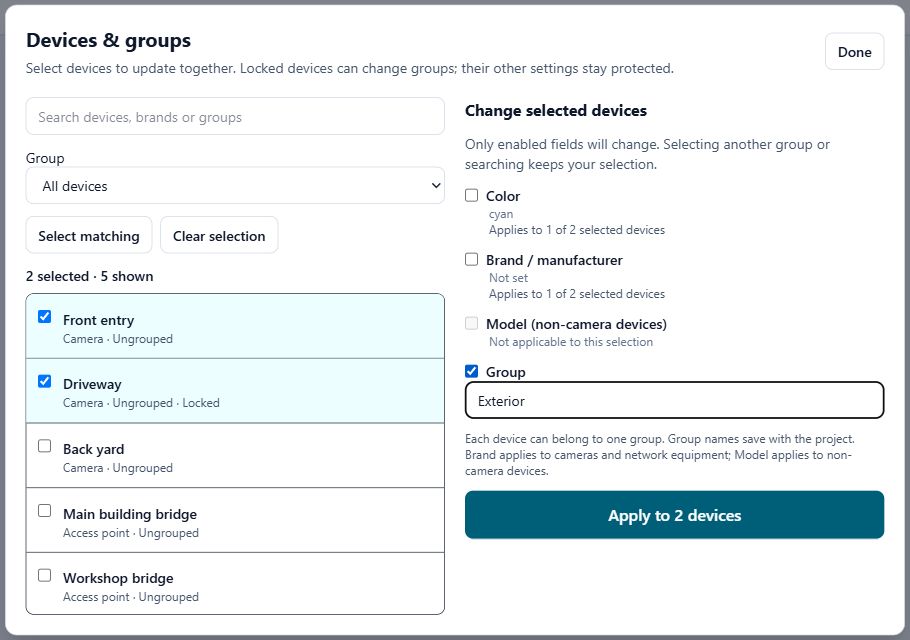
- Select Select devices & groups. The Devices & groups panel opens.
- Check the devices you want to group. Search by device name or brand to narrow a long list. Select matching selects the results currently shown; check the selected count before continuing.
- Under Change selected devices, check Group. This enables the group-name field.
- Enter a name, such as Exterior, or choose an existing group name.
- Leave Color, Brand / manufacturer and Model unchecked if you only want to change the group. Click Apply to … devices.
- Check the update message, then click Done. Save the project so the grouping is retained.
Show or hide a group
Group names appear in the sidebar with their device count. Use Hide to hide the members, or Show to display them. If only part of a group is visible, the control offers Hide all. These controls change visibility; they do not delete the devices.
Select the group name to reopen the panel filtered to that group. Check the map before exporting if you have hidden any devices.
Move devices to another group or remove grouping
Select the devices again, enable Group, enter the destination group and apply. To remove grouping, enable Group but leave its name blank, then apply. The devices remain on the map. To rename a whole group, filter to the old group, select its members, enter the new name and apply.
Searching or changing the group filter keeps your existing selection. Use Clear selection when starting a different edit so you do not accidentally include devices from another filter.
Grouping locked devices
You can add a locked camera or access point to a group without unlocking it. The device stays locked, so movement and deletion protection remain in place. Other bulk settings can apply to fewer devices than the selected total; the panel shows which devices are eligible for each field.
Grouping organizes a project. It is not a multi-device drag tool and does not create a network connection. Use wireless links to represent bridge connections.
Common questions
Can one camera be in two groups?
No. Each device has one group name. Applying another group replaces its previous group.
Does hiding a group delete its cameras?
No. Show and Hide change visibility. The devices stay in the project.
Can I undo a group change?
Yes. Use Mapper Undo to reverse the edit while it remains in the undo history. Save the corrected project afterward.