
Open My Inventory and check access
Sign in, open Your account → My Inventory, and use the add-device form. If your plan does not include it, the dashboard shows a disabled preview and an upgrade link. Access follows the current membership settings.
Your inventory is private to your account. It is a library of reusable equipment specifications, not a stock-count or purchasing system.
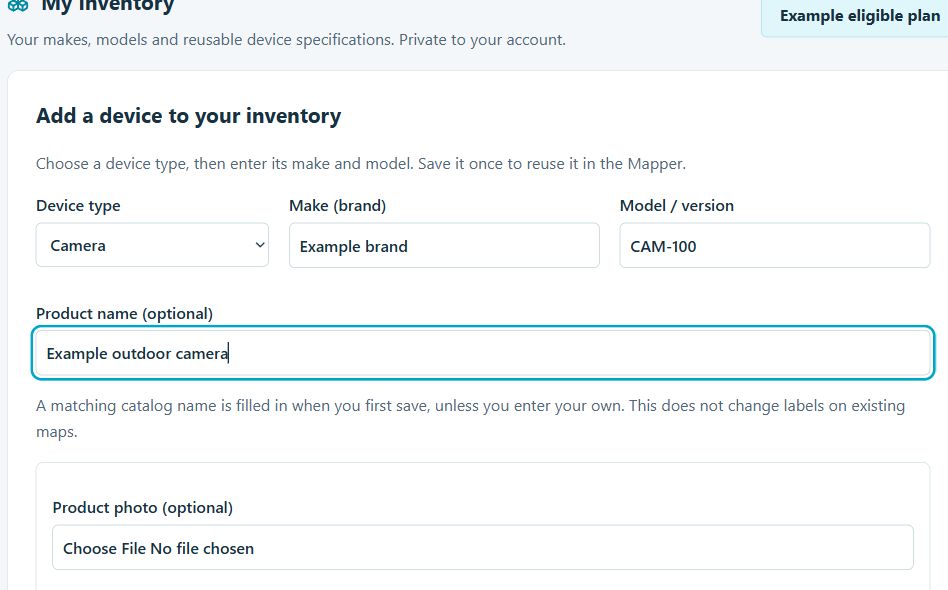
Add a make, model and optional product name
- Choose the correct Device type. Camera and Doorbell are separate choices. NVR, PoE switch, Access point, Computer, VMS / Blue Iris and Material / accessory are also available.
- Enter the manufacturer in Make (brand), and the model number in Model / version. These are two separate fields.
- Add a descriptive Product name if you want one. It is separate from the model number and from a map label such as “Front entry.”
- Fill in any relevant optional specifications. For a camera, the optional section includes lens size, resolution, horizontal field of view, map range and icon. Read each field’s units: the inventory camera range field is in meters.
- Click Add to inventory. Find the entry under Your saved devices.
When you first save a matching catalog device, its available catalog name can fill a blank product name. An exact make/model match matters; a similar-looking number is not the same device.
Save from the Mapper and reuse an entry
- Select a device on the map and open its details.
- Type in Make and Model, or use their dropdown lists. Matching choices are labeled My inventory or Manufacturer catalog.
- After choosing the make/model and checking its specifications, select Add to my inventory. If the matching entry is already saved, the button becomes Update inventory entry.
- On another map, add the same type of device and choose its saved model from the My inventory results.
Saving an inventory entry does not automatically place a device. Selecting a saved entry applies reusable specifications to the selected device. Its location and wiring belong to that map.
Product photos and PDF exports
A matching catalog device can bring its available approved product photo into inventory. You can also upload your own JPG, PNG or WebP, up to 2 MB. A missing catalog photo does not prevent you from saving the device.
In the PDF dialog, enable Include product images when available to include available photos. Include product names on device pages is a separate option. See the PDF export guide for the full workflow.
Find, edit and remove saved devices
Find a saved device searches your existing inventory by make, model or product name; it is not an add-device field. Use the device-type filter to narrow the list.
Select Edit to load an entry into the form, then Save changes. Select Remove to reveal confirmation directly under that entry. Removing or editing inventory does not rewrite devices already placed on maps. Reapply the desired saved model to a mapped device when you intend to update that project.
Common questions
Does My Inventory publish a product for everyone?
No. Your inventory is private. The shared manufacturer catalog is managed separately.
Why did the product photo not appear?
Check the device type, exact make and model, and whether that catalog model has an approved image. You can upload your own photo if none is available.
Where do I upgrade?
Use Compare plans & upgrade above, or open the plans page from your account. Choose a current plan that includes Personal device inventory.